> For the complete documentation index, see [llms.txt](https://docs.lucernahealth.com/guide/llms.txt). Markdown versions of documentation pages are available by appending `.md` to page URLs; this page is available as [Markdown](https://docs.lucernahealth.com/guide/insights-studio/population-builder/reference-guides/exploring-populations.md).
# Exploring Populations
Every population has six tabs and each one answers a different question about the population.
Tab
The question it answers
Details
What is this population, and who owns it?
Definition
How is it built?
Preview Data
Who's actually in it?
Destinations
Where does it go?
References
What depends on it?
Run History
How has it been running?
***
### Details tab
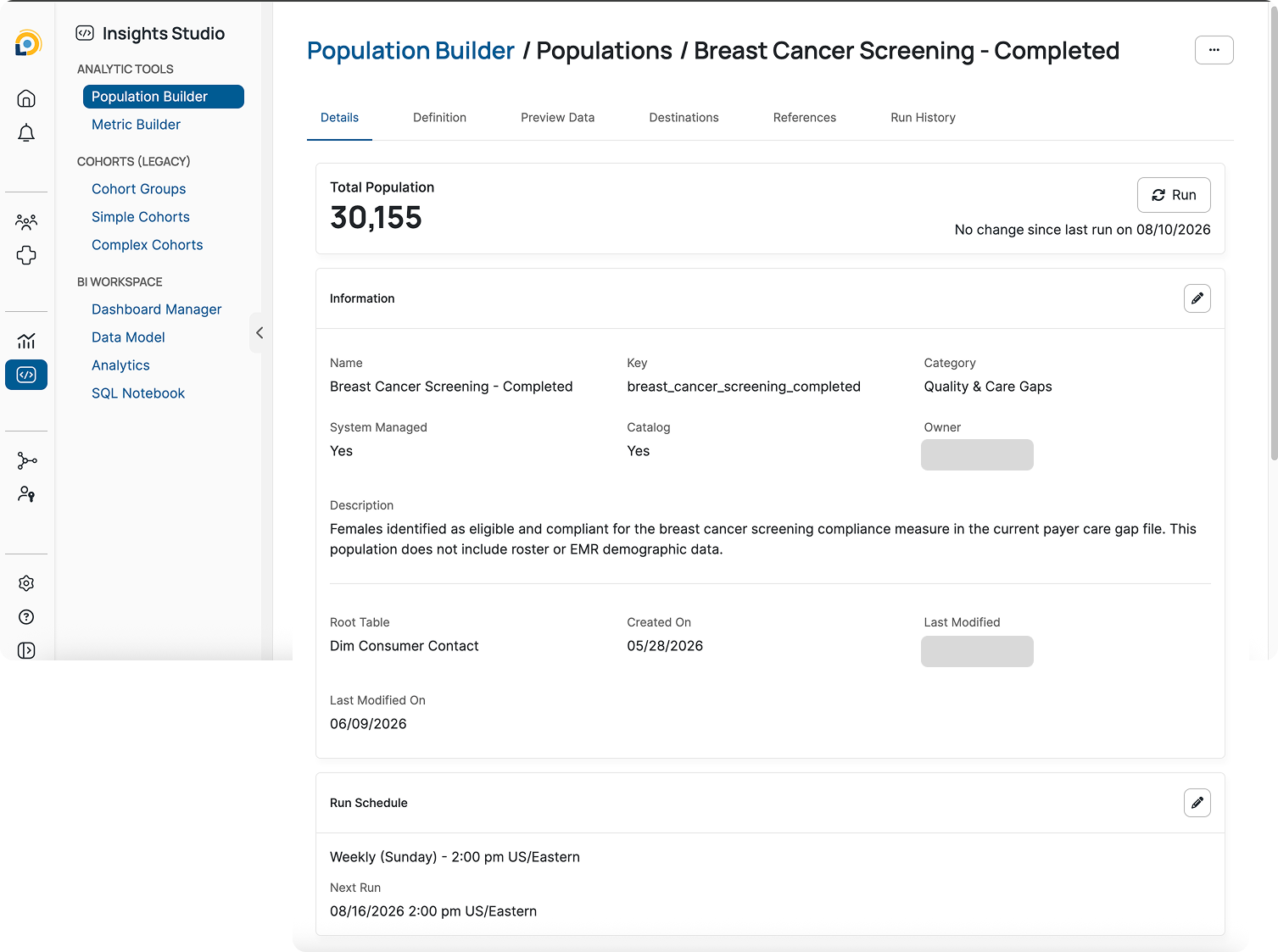
The Details tab is where you land when you open a population. It gives you the summary: how many members are in it, who owns it, and when it last updated.
#### Total population
The number at the top is the member count from the last time the population ran. Next to the count, you'll see the last run date and whether the count has changed since then. When it has, the change appears as a percentage increase or decrease, which is a quick way to spot a population that's grown or shrunk unexpectedly.
To get a current count, click **Run**.
#### Information
This panel holds the population's metadata:
| Field | What it tells you |
| -------------------------- | -------------------------------------------------------------------------------------- |
| Name | The display name |
| Key | The unique identifier |
| Category | How the population is grouped (Quality & Care Gaps, Engagement, Operations, and so on) |
| System Managed | Whether it's maintained by Lucerna Team |
| Catalog | Whether it ships pre-built with the feature |
| Owner | Who's responsible for it |
| Description | What the population contains and any caveats |
| Root Table | The table the population is built against |
| Created On / Last Modified | When it was created and last changed, and by whom |
If **System Managed** is set to Yes, only the Lucerna team can edit the population. You can still view everything: logic, count, full definition, but the edit controls won't be available to you. This keeps shared definitions consistent across everyone using them.
#### Run schedule
Populations can refresh automatically on a schedule rather than waiting for someone to run them manually. This section shows the current schedule and the next scheduled run.
Setting up or changing a schedule requires specific permissions, so you may see the schedule without being able to edit it.
***
### Definition tab
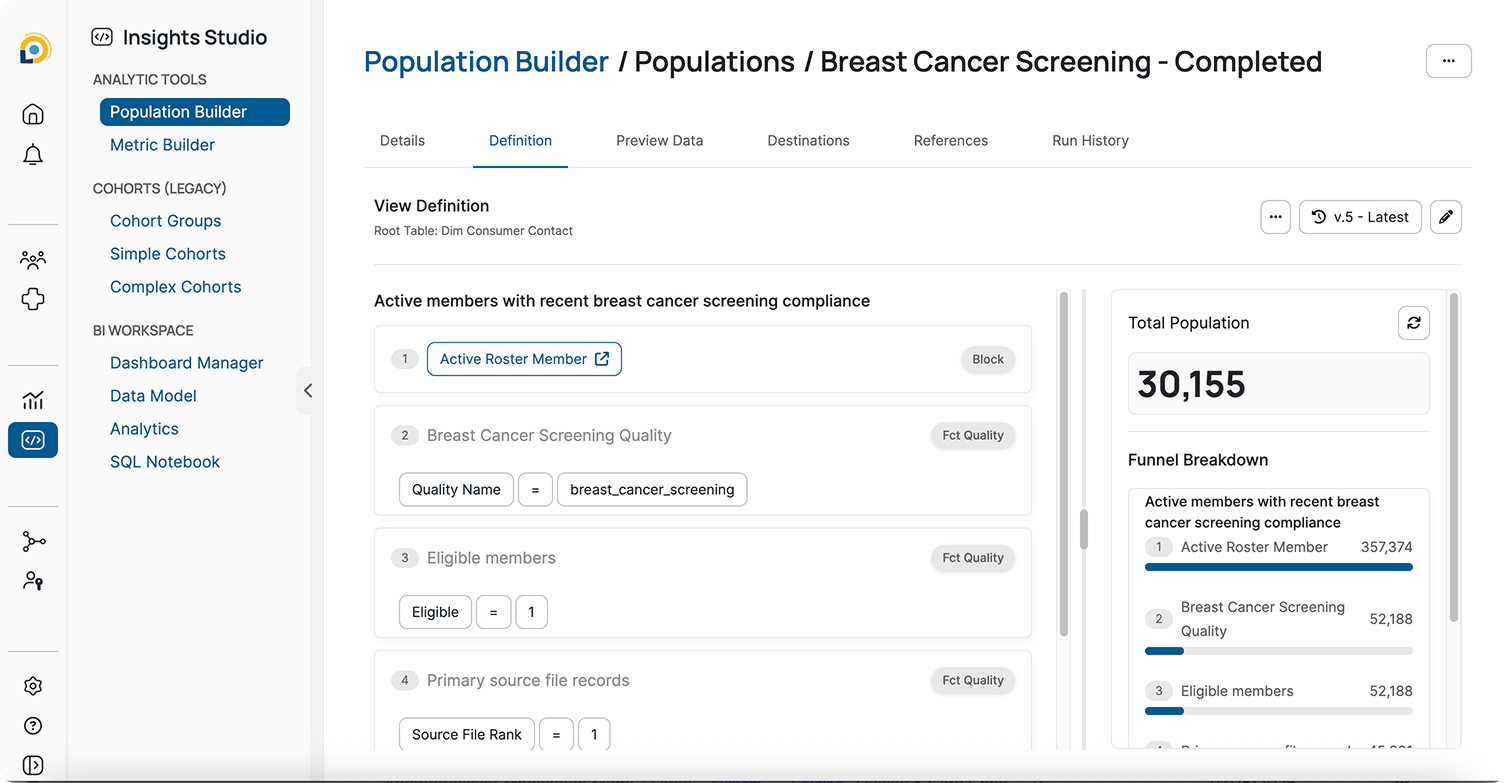
The Definition tab shows the query behind the population, the actual rules that determine who's included. It's split into two panels that work together.
#### The query panel
The left panel lays out each step of the query in order. Every step is labelled with where it came from:
| Label | What it means | Why it matters |
| ----------------------------- | ----------------------------------------------------- | -------------------------------------------------------------------------------------------- |
| Block | A reusable set of conditions pulled in from elsewhere | The logic lives somewhere else and is shared — changing it affects everything referencing it |
| Population | Another population used as a building block | Same as above: shared logic, wider impact |
| Table name (e.g. Fct Quality) | A rule built directly from a field in that table | Written here, specific to this population |
This labelling is the fastest way to understand an unfamiliar population. Blocks and populations point you elsewhere; table names tell you the rule is local.
#### The funnel
The right panel shows how the member count narrows at each step. You start with everyone the first step returns, and each subsequent rule filters that number down.
The step names match exactly between the two panels, so you can trace any rule on the left to its effect on the right. This is the fastest way to find out which rule is doing the most filtering, or to spot a rule that unexpectedly drops your count to near zero.
#### Making changes
Click the pencil icon to enter edit mode. The heading changes from "View Definition" to "Edit Definition" so it's clear you're working on a draft rather than the live version.
Changes go live in two steps:
1. **Save** your changes and review them.
2. **Publish** to push that version live.
Until you publish, the live population is unchanged.
#### Before editing a population
✅ Check References for anything that depends on it
✅ Confirm you have edit access (System Managed = No)
✅ Review the funnel to understand current behavior
✅ Save and review before publishing
#### Version history
Every edit is saved as its own version. You can open any previous version to see what the query looked like at that point, and restore it if something goes wrong: select the version, then click **Revert**.
#### Root table and SQL
The menu icon has two options:
**Root Table** lets you change the table the population is built against. Leave this alone unless you have a specific reason to change it — the current table is usually correct, and switching it can change your results in ways that aren't obvious.
**Preview SQL** shows the SQL the builder generated from your rules. This is useful if you're comfortable reading SQL and want to confirm the query does what you intended.
***
### Preview Data tab
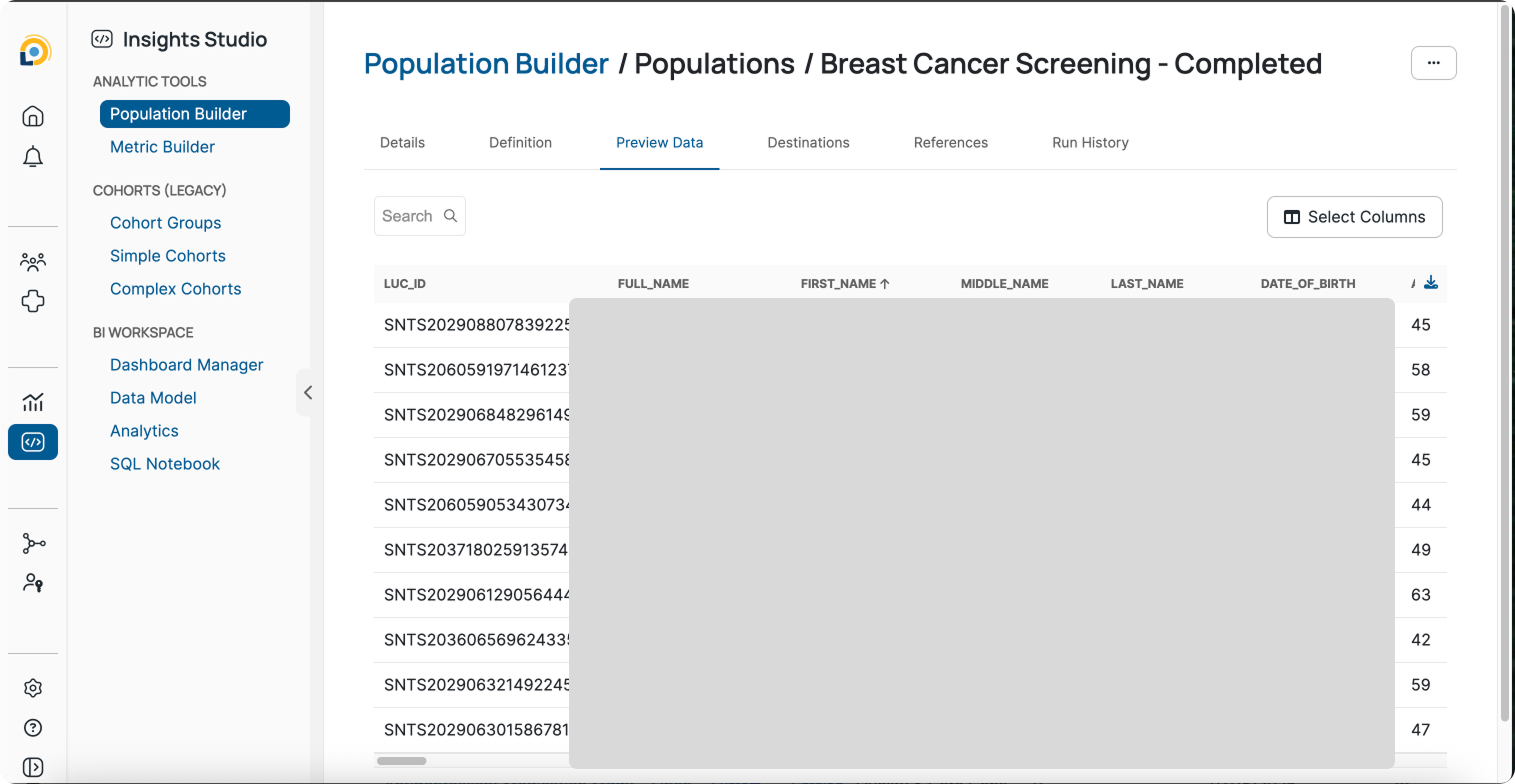
This tab shows you the actual members in the population, so you can sanity-check that the results look right before sending the population anywhere.
It's a sample, not the complete list. To get everything, use the download icon on the right.
By default every column is shown. Use **Select Columns** to narrow it to just the fields you care about, helpful when the default view is too wide to scan comfortably.
***
### Destinations tab
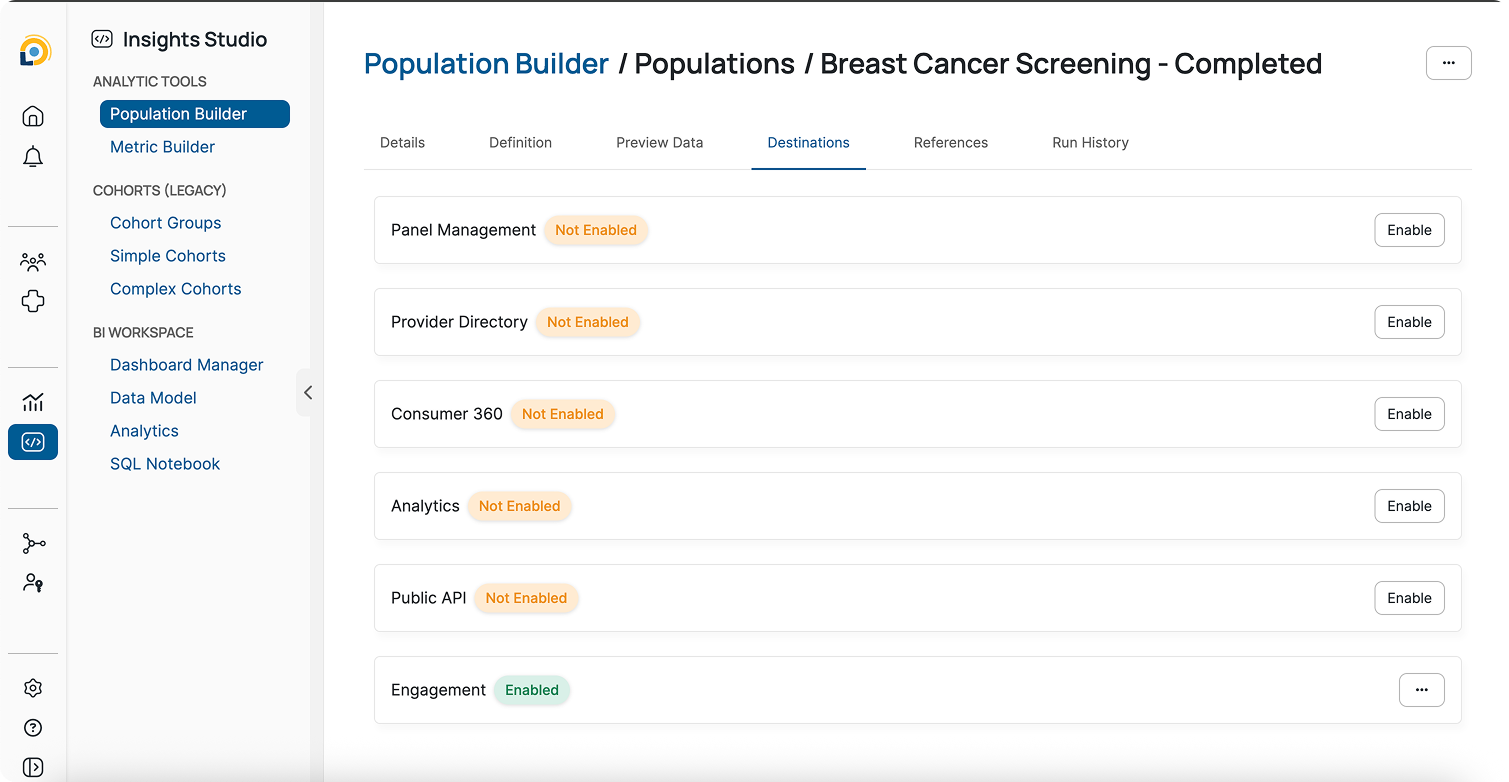
Destinations tab is where to send populations. Each destination has its own row showing whether it's currently enabled, along with the controls to turn it on or off.
Some destinations work as soon as you enable them. Others need additional setup before the population actually appears. Enabling destinations requires specific permissions.
Destinations are covered in full in their own guide.
***
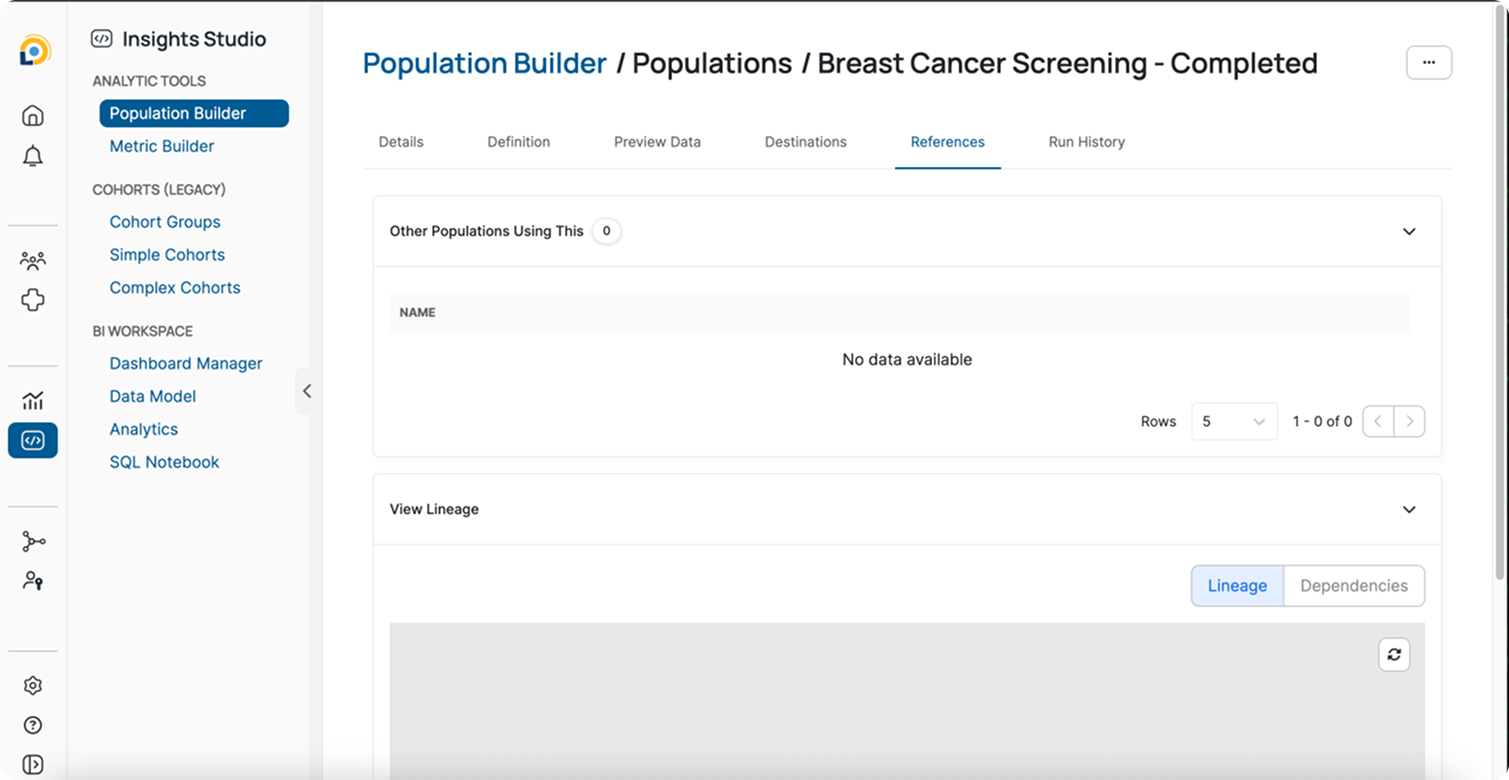
### References tab
The References tab shows which other populations are using this population. Any changes you make here will carry over to every population that references it.
#### Lineage and dependencies
The lineage diagram and dependencies table show where each component used to create this population comes from, and how they connect to one another.
***
### Run History tab
A log of every time the population has run, showing status, row count, start and end time, and run type.
Two things to look for:
**Failed runs.** These appear with a Failed status and no row count. An occasional failure isn't unusual, but repeated failures mean the population isn't updating and anything downstream is working from stale data.
**Unexpected count changes.** Comparing row counts across runs can surface a problem before anyone downstream notices, a sharp drop or jump usually points to a change in the underlying data rather than the population itself.